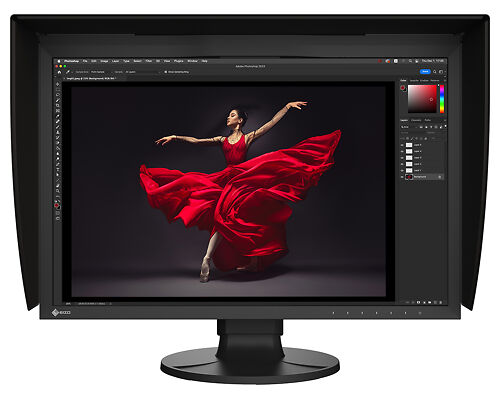
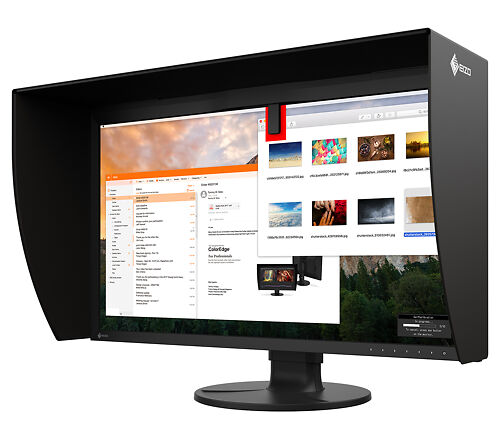
A more detailed article follows, but here's a quick breakdown of the Eizo monitor range:
- ColorEdge Models offer the most advanced features, best quality, and most comprehensive warranty and support. These models all include direct hardware calibration if you own/buy a compatible monitor calibrator. Direct hardware calibration is both the highest quality AND the easiest way to calibrate a monitor. These monitors can also do very sophisticated things no other LCD monitors can do, such as calibrating to specific contrast ratios to match papers. ColorEdge monitors are quite simply the best monitors available in the world today when you consider the total package of features, support and (critically) ease of use.
- Flexscan Premium Monitors offer most of the features and most of the quality of the ColorEdge line of monitors, but do not offer direct hardware calibration. You can still use traditional 'software calibration with a hardware device', such as the Eye One Display or Spyder calibrators, and achieve superb results.
- Flexscan monitors are the entry level Eizo monitors - these monitors still offer very high quality panels and extensive calibration controls, but they do not have advanced features like wide gamut support or dynamic uniformity enhancement - they are however still a huge leap forward in colour terms over other panel brands like Apple/Dell etc.
This brief guide is intended to identify the key differences between the different technologies available in the various Eizo monitors, so you can make the best choice for your needs. If you have any further questions, please do not hesitate to get in touch!
Jump to:
Introduction
Eizo have quite a few models in their line, and it can be quite confusing choosing which is the best model for your needs.
The first thing we'll say is that any Eizo, even the cheapest 17" Flexscan screen, is likely to be considerably better than any other monitor you've worked with. They are easily and demonstrably better, more accurate screens than other screens you might have used in the past, from an old budget CRT, through to the venerable Sony G monitors, the Mitsubishi/NEC/Lacie aperture grill CRTs, Apple Cinema Displays, Dell LCDs - you name it. Short of the Sony Artisan (no longer made, about $8000, was a special import only!), there is really nothing out there as good - while in their day the aperture grill CRTs were good and well respected, they are definitely not even close to the same league as the latest Eizo LCDs.
Having owned several of both types of monitor, and used them extensively for professional level colour work and retouching, I am absolutely sure of this and have made the measurements with a spectrophotometer to back it up.
You will definitely notice improvements in sharpness, shadow depth, three dimensionality, and the natural and accurate feel of colour when you have the pleasure of using an Eizo. All Eizos are factory calibrated before leaving Japan so right out of the box they're in much better shape than other screens. This however doesn't mean you shouldn't buy your own screen calibrator, as all monitors inherently drift over time (even Eizo monitors) and thus require regular calibration.
We have several Eizos here at the office, all day every day, used all day every day in a professional colour critical context and we absolutely love both of these screens. They make it much easier for us to produce the quality of results we are famous for.
So rest assured, any Eizo is a great screen. The question to answer is, how great do you need, and how great can you afford?
The Very Best
If money is no object, the Eizo Coloredge CG221 monitor, covering the full gamut of AdobeRGB, is unquestionably one of the best imaging devices available in the world today. It's very expensive, no question, but it's also very very good.
This monitor is particularly well suited to high end proofing applications and is typically found in large printing houses and high end retouching agencies, and is also popular with other colour critical industries such as pattern, fabric, and paint development environments.
For most other professionals, the new IPS panel Eizo CG243W is a better buy - it offers almost all of the same features and quality, and is dramatically cheaper.
(S)PVA versus IPS Panels
One of the key decision to make when choosing an Eizo is to choose between a PVA panel and an IPS panel.
All Flexscans, except the L997, have a PVA panel.
All ColorEdge CE Models are PVA, and CG models are either IPS or new generation S-PVA panels.
Traditionally, IPS panels have offered better colour reproduction than PVA panels. That said, PVA panels have come a very long way in recent years and the difference is certainly not what it once was. Indeed, we have two screens in the office here, one IPS and one PVA, and I struggle to see any real practical difference in real world usage when sitting in front of either screen and doing photographic image editing.
Some Eizo CG models (like the amazing Eizo CG241W) have a new generation S-PVA panel that combines most of the advantages of both IPS and PVA panels. Perhaps the very best of the current crop of Eizos has a new generation IPS panel - the CG243W.
These new monitors also come with a feature called DUE which makes them perfectly even across their field, so there's really no longer any real practical disadvantage to these panels - quite simply they are superb!
One noticeable difference is that if you're sufficiently off angle (i.e. looking at your screen from the side), then the IPS panel continues to display colour accurately noticeably more than the PVA panel. Directly in front, they are uncannily similar, but from the side, this extra colour accuracy may prove to be quite important in certain contexts - such as when showing work to clients.
PVA panels are generally much brighter than IPS panels. This means they tend to be a little less even across their field, and in most cases you turn them down to about 10% of their max brightness when doing photographic work. The extra brightness can be great for working with video, especially during the day. Most people don't find the slight shift in brightness across the field to be an issue of practical importance. If you're really concerned about having a perfectly even field, select a higher end ColorEdge or Flexscan Premium model with DUE, a system which guarantees the field will be even within tight tolerances. We have a PDF on DUE available if you're interested in how it works (see attachments below)
If you're a graphic designer, and want the smoothest possible gradients, an IPS panel will help there as well.
PVA models have faster gray to gray refresh times - meaning they're better for video work. Irrelevant for photography, but if you edit or watch videos regularly, a PVA is probably a better choice.
For general photographic use, from front on or within 40 degrees or so, there is not a lot of difference and both PVA and IPS panels offer excellent, accurate, and smooth colour once calibrated.
Hardware vs. software calibration
The first thing to say is that any form of calibration is way better than no calibration! Even expensive monitors will drift over time and therefore require regular calibration. Eizo monitors will drift far less than most as they have extensive stability electronics, but they will still drift a small amount.
We definitely recommend getting a monitor calibrator with your monitor if you don't already have one.
The ColorEdge line of monitors offers direct hardware calibration. This means calibration is done using Eizo's custom calibration software (Colour Navigator) using the LUT tables in the back of the monitor (rather than the video card). These tables are (depending on model) 12, 14 or 16 bit tables. This is in contrast to the normal LUTs in video cards used in software calibration (see next paragraph), which are just 8 bit tables. This is important as when dealing with difficult areas (deep shadows, highly saturated colours etc), doing the maths in a higher bit depth level means you get a more accurate result with greater distinguishable tones being the final result. If you're really pushing the boundaries of colour, or consistently working on low key images on a regular basis, this may be of great use to you.
See also contrast ratio control below for another great feature of direct hardware calibration.
N.B. You must still buy a monitor calibrator with the ColorEdge line monitors if you don't have one or you will not be taking full advantage of your screen.
ColorNavigator compatible calibrators include the Spyder2 & Spyder3 series and the Eye One Display series. The Spyder3 Pro is probably the best option at the current time and is relatively inexpensive.
The Flexscan and Flexscan Premium lines offer more traditional software calibration. This means the calibration is done using your calibration system's software (e.g. Eye One Match), and the lookup table (LUT) in the video card is used. This is an 8 bit table. This is how calibration has traditionally been done and is still done with almost all monitors on the market today. When the panel in question is a high quality Eizo panel, the results of this calibration can still be superb and more than adequate for most people. NB You still need to buy a hardware calibration device to do this rather confusingly named 'software calibration'!
One key thing to understand is that the hardware controls on the monitors, both Flexscans and ColorEdges, all work using the internal higher bit depth tables. So if you're varying your gamma, or whitepoint, or luminance in any way for a specialist task, then you still get the advantage of true higher bit depth hardware adjustments even with the cheaper models.
You can read more about different types of monitor calibration here.
Contrast Ratio Control
One of the fantastic things the ColorEdge line of monitor can do is to set themselves to a specific contrast ratio. A contrast ratio (the ratio of brightness of the whitest white to the blackest black) is a critical part of achieving a great screen to print match. Typical LCD monitors (including Flexscan and Flexscan Premium monitors, and pretty much all other LCDs), have a fixed contrast ratio. This is usually over 500:1, and on newer monitors can be well over 1000:1. This can make the onscreen simulation of prints - which have at most 250:1 contrast and usually less, with fine art papers it is often more like 170:1 - a difficult thing to achieve on monitors without this feature. If you have been editing your image on a 1000:1 screen and you turn on soft proofing, the sudden drop in contrast is very dramatic and your eye can have real difficulty getting used to this view. It means that while editing your image, you are constantly seeing a really contrasty version of your image, and this can lead to less good editing decisions.
On the ColorEdge screen you can set specific targets for white point and black point brightness - such as 100 candellas and 0.5 candellas. 100/0.5 = 200, thus the resulting contrast ratio of the screen is 200:1. This is trivially easy to do in Color Navigator and once set the screen will display everything at the desired contrast ratio - making a screen to print match MUCH easier to achieve. This is a prime example of Eizo developing an excellent technology AND making it very easy to use, which is one of the major reasons the Eizo monitors are head and shoulders above the competition.
Uniformity Enhancement
LCD screens inherently have variance in brightness and colour across their field of display. Poor quality LCD monitors can have dramatic variance - easily visible and very significant changes in both colour and brightness across the display. Flexscan level monitors generally have very little colour variance across their field, but some remaining brightness variance (much less than similarly priced products such as Apple Cinema Displays, though). This is rarely a practical problem, but if you do a lot of side by side retouching of images, it can be noticeable.
Once you reach the Flexscan Premium range, most of the monitors come with Digital Uniformity Enhancement - a system that keeps the monitor's display level across the entire field. The CG line monitors all have DUE, but to higher tolerances again than the Flexscan Premium monitors. You even get a measurement report with your screen showing that the variance across the display is tiny!
In the attachments section below, there is an article describing DUE in detail.
Screen size issues & Multiple monitors
Generally the size of screen you buy comes down to your needs and your budget. Often, the decision comes down to whether to buy a bigger Eizo versus buying a smaller Eizo and a second, cheaper panel for Photoshops palettes.
There's no right and wrong on this - I use two monitor's myself, and it works very well...but I have plenty of desk space so it's no bother. If space is at a premium then one larger monitor is probably the way to go.
If you want and can afford a bigger screen, I'd say go for it - more screen real estate is always a good thing (up to about 30 inches beyond which it can actually be a bit of a literal pain in the neck!).
Widescreen 16:9 or traditional 4:3
This depends on your work, but as a general rule I'd say go wide screen.
16:10 ratio screens are becoming increasingly standard, which means user interface design is moving towards this ratio. It's wide enough to have a strip of palettes running down the screen while still leaving a good sized, rectangular work area. On a 4:3 screen, with palettes on the side, you're left with a rather square-ish work space. Photoshop has palettes and a workspace area that I notice suit a wide screen format particularly well.
However, some of the wide screen models mostly can not be rotated 90 degrees (check the brochure for the model you're interested in as some can). If you do a lot of portrait work, this can be a very handy feature so you might be better off with a 4:3 screen.
If you edit video, almost all recent video cameras shoot 16:9 wide screen. This means your videos fill the entire screen once edit, and all the edit programs gear their design towards wide screen editing these days.
Personally, I use a wide screen. I shoot mainly 6 by 12cm film and 35mm digital, and most of my images are landscape format. I also do some video editing occasionally.
Overdrive Circuits/Sharpness Enhancer/Dynamic Contrast Enhancer/HDCP
Some Eizo Flexscan models include these features.
They are all features designed to improve performance with moving video images (e.g. when watching DVDs etc). None of them are really relevant to photographic retouching, but are nice to have if you also watch/edit movies or do CAD/CAM work on your monitor.
We recommend all these features are turned off when you edit photographic images as most of them will interfere with the process of retouching by dynamically varying the onscreen image as you edit - definitely not a good idea with photographic work.
An overdrive circuit improves the midtone to midtone responses time, usually getting it down to about 6 to 8 milliseconds. This reduces ghosting with moving images.
Sharpness Enhancer applies on the fly edge enhancement to images.
Dynamic Contrast Enhancer works by dynamically varying the backlight brightness depending on the displayed image. This can help high contrast images appear to have darker shadows, which can be pleasing when watching videos.
HDCP compatibility allows protected content from Blu-Ray/HD-DVD etc to be played on these screens.
Rotating an Eizo Screen for portrait work
Most Eizo screens pivot 90 degrees (except for the wide screen models). Some of the more expensive Eizo models (Flexscan L997, ColorEdge CG210, 211 etc) include a tool called Active Rotation that will automatically rotate the screen image when you physically rotate the screen.
If you have another Eizo monitor with the rotate function (also called the pivot function), then the rotation is controlled by the graphics card - most modern cards can do this. You will need to install and use the software that came with your video card (e.g 'Catalyst' for ATI cards), and go into the settings for this software. There is also normally a keyboard short cut to engage this mode quickly. If your video card can not do this, you'll need to upgrade your video card to one that can if you want to use the portrait mode.
Negatives of Eizo screens
I can only think of one negative - cost. They're definitely much more expensive than, say, the Dell monitors of this world. They're also way, way better and definitely worth it if quality image making and accurate colour is important to you. They're also the only screens with a 5 year warranty, so take the cost, divide it by (at least) 5, and look at the per year cost - it's not really that much and it's definitely worth it. At they very least, before you put your pennies towards a basic LCD like a Dell or Samsung or whatever, come in to our office and have a look at an Eizo. You will be seduced by the quality!
So which model should I choose?
After all this, which model is the right one? Well, they're all good, so you won't go far wrong, no matter which model you choose.
If it comes down to a choice between a more expensive screen and no calibrator, or a cheaper screen and a monitor calibrator, then my advice is to go for the cheaper screen with the calibrator - or save your pennies for a month or two and get what you really want. Calibration is critical in achieving colour accuracy (and therefore, ultimately, high quality prints!).
Personally if the budget is there, I think the current best value model is the CG222W model. It has pretty much all the CG features and is the most modestly priced. If you can stretch to a CG241W (this is what I own), then you will never regret the extra space and this really is a fantastic machine - I love mine! The new CG243W is even better again - with amazing neutral greys along the entire axis and improved viewing angled in particular.
These models both have a high quality S-PVA panel, offer great hardware based calibration, and are a very nice shape and size to sit in front of day to day, when doing a mix of photographic work and more general things like email and browsing. Overall I think they're the best bang for buck at the moment. Combined with a Spyder 3 Pro, you'll have an extremely high quality and highly accurate system that is also very easy to use.
If you're looking for something around $1000 the Eizo S1921 is a great introduction, still has superb panel technology and good calibration controls, and 19", while not as nice as the bigger models, is still big enough for many people. Plenty of professionals do all their day to day editing on one of these.